9 Best Calendar Apps for Time Blocking in 2026

Most calendar apps were built to hold meetings, not protect your work. That gap is exactly why a small category of "time blocking" tools has grown fast over the past two years: Motion, Reclaim.ai, Sunsama, Akiflow, and a handful of others all promise to turn your task list into a real schedule instead of a wish list.
We tested pricing, features, and setup friction across nine of the most-searched options for 2026. Here's the short version, then the full breakdown.
Quick picks:
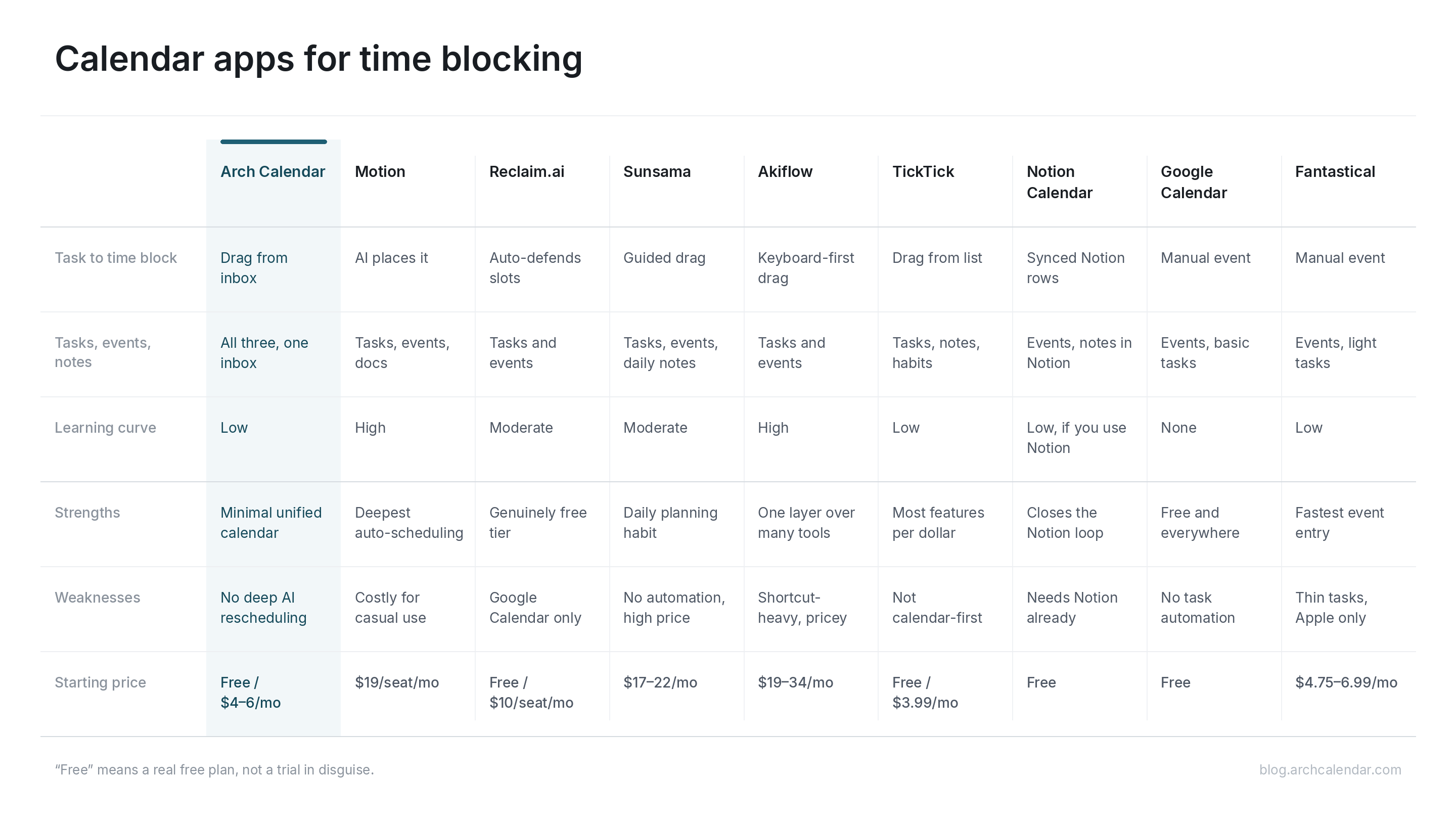
- Best overall for combining tasks, events, and notes: Arch Calendar
- Best AI auto-scheduling: Motion
- Best free tier: Reclaim.ai
- Best for daily planning rituals: Sunsama
- Best for pulling tasks from many tools into one calendar: Akiflow
- Best budget pick: TickTick
- Best if you already live in Notion: Notion Calendar
- Best free baseline: Google Calendar
- Best native Apple experience: Fantastical
What actually makes a calendar app good for time blocking?
A calendar app works for time blocking when it lets you drag a task straight onto a specific slot without leaving the calendar view. That single requirement rules out more apps than you'd expect. Plenty of "productivity" tools keep tasks and events in separate tabs, which means every time block still requires manual copy-paste between two systems.
Beyond that core mechanic, four things matter most:
- Task-to-calendar friction. Can you turn a to-do into a scheduled block in one motion, or does it take three clicks and a context switch?
- Rescheduling behavior. Life moves your 2pm block to 4pm constantly. Good apps push everything else down automatically instead of leaving gaps.
- Where your tasks actually live. If your inbox is scattered across Slack, email, and three apps, an app that only manages calendar events won't fix the underlying mess.
- Price at the tier you'll actually use. Several tools advertise a free plan that's really a seven-day trial in disguise.
The 9 best calendar apps for time blocking in 2026
1. Arch Calendar: best for keeping tasks, events, and notes in one inbox
Arch Calendar is built around a single inbox where tasks, event invites, and quick notes land before you decide when they happen. You drag anything from that inbox straight onto the calendar to time block it, and an end-of-day review ("Today Zero") shows what you actually got through versus what got pushed. It also syncs with Google Calendar and includes basic encryption for personal data.
It's a smaller, newer product than Motion or Reclaim, so it doesn't yet have deep AI auto-rescheduling. What it does well is removing the extra app you'd otherwise need for notes and quick capture.
- Price: Free plan (4 spaces, up to 50 active to-do lists); Pro around $4 to $6/month depending on billing cycle
- Best for: People who want tasks, calendar, and notes in one place without stitching apps together
- Platforms: Web, iOS, Android
2. Motion: best AI auto-scheduling
Motion's pitch is that it schedules your day for you: give it a task list and deadlines, and it slots them into open calendar gaps around your meetings, then re-slots everything automatically when something runs long. That auto-rearranging is genuinely the most aggressive of any tool on this list.
The tradeoff is cost and a learning curve. It's priced for professionals who bill their time, not casual users testing out time blocking for the first time.
- Price: Pro AI $19/seat/month, Business AI $29/seat/month (roughly 33% cheaper billed annually)
- Best for: People with heavy, shifting task loads who want the software to do the re-scheduling
- Platforms: Web, iOS, Android, desktop
3. Reclaim.ai: best free tier for Google Calendar users
Reclaim sits on top of Google Calendar and auto-defends time for "Habits" (recurring focus blocks), tasks, and buffer time, moving things around as your week fills up. Unlike most AI schedulers, it has a genuinely usable free forever plan, not just a trial.
- Price: Free forever (Lite); Starter from $10/seat/month, Business from $15/seat/month (billed monthly; roughly 20% less annually)
- Best for: Existing Google Calendar users who want automated time blocking without switching their whole calendar
- Platforms: Web, Chrome extension, Google Calendar integration
4. Sunsama: best for a daily planning ritual
Sunsama is less about automation and more about a deliberate, guided daily planning session: it pulls tasks from Slack, Trello, Asana, Jira, and other tools into one place, then asks you to consciously drag a realistic number onto today's calendar. People who like the structure of a daily standup with themselves tend to stick with it longer than with fully automated tools.
- Price: $22/month billed monthly, $17/month billed annually (per-person team pricing runs $20 to $25/month)
- Best for: People who want a mindful daily planning habit, not just automation
- Platforms: Web, Mac, Windows, iOS, Android
5. Akiflow: best for consolidating tasks from many tools
If your tasks are scattered across email, Slack, Linear, Notion, and a notes app, Akiflow's main job is pulling all of it into one command-bar-style inbox you can then block onto your calendar in seconds. It leans on keyboard shortcuts hard, which power users like and everyone else needs a week to adjust to.
- Price: $34/month billed monthly, $19/month billed annually
- Best for: People juggling 4+ tools who want one blocking layer on top of all of them
- Platforms: Web, Mac, Windows, iOS, Android
6. TickTick: best budget option
TickTick is a to-do list app first, with a calendar and time-blocking view built in, plus a Pomodoro timer and habit tracker in the same app. It's not trying to out-automate Motion or Reclaim. It's trying to be the cheapest app that still lets you drag tasks onto time slots.
- Price: Free plan; Premium $3.99/month or $35.99/year
- Best for: Budget-conscious users who want time blocking plus a full to-do list and Pomodoro timer
- Platforms: Web, iOS, Android, Mac, Windows
7. Notion Calendar: best if you already live in Notion
Notion Calendar (formerly Cron) connects directly to Notion databases, so tasks tracked in a Notion board can show up as calendar events. If your team already runs projects in Notion, this closes the loop without a new tool. If you don't use Notion for tasks already, there's little reason to start here.
- Price: Free
- Best for: Teams and individuals already managing tasks inside Notion
- Platforms: Web, Mac, Windows, iOS, Android
8. Google Calendar: best free baseline
Google Calendar has no built-in task-to-block automation, but it's free, universal, and supports manual time blocking through color-coded events and (more recently) Google Tasks integration. Most people time block here first before deciding whether they need a dedicated tool at all, which makes it a reasonable place to test the habit before paying for anything.
- Price: Free
- Best for: Anyone testing time blocking before committing to a paid tool
- Platforms: Web, iOS, Android, and everywhere Google Workspace already lives
9. Fantastical: best native Apple experience
Fantastical's natural-language event creation ("lunch with Sam Tuesday 1pm") and calendar-set switching are built specifically for iOS and macOS, with a level of polish that cross-platform tools rarely match on Apple hardware. Task support is thinner than Motion or Sunsama, so it works best as a fast, well-designed event calendar rather than a full task-blocking system.
- Price: Individual $6.99/month or $4.75/month billed annually; Family plan $10.49/month or $7.50/month annually
- Best for: Apple-only users who want the fastest possible event entry
- Platforms: Mac, iPhone, iPad, Apple Watch
Does time blocking actually work, or is it just a productivity fad?
The research on this is more specific than most productivity advice. UC Irvine professor Gloria Mark, who has spent over a decade studying digital attention, found that it takes an average of about 23 minutes to fully return to a task after an interruption, and that the average attention span on a screen has dropped to roughly 47 seconds. Time blocking directly targets that problem by giving each task a protected slot instead of leaving it to compete with whatever shows up in your inbox next.
That doesn't mean it works for everyone in the same way. Some people find rigid blocks stressful when their day is genuinely unpredictable (client-facing roles, support teams, parents of young kids). For them, looser variations like day theming or task batching, both of which most of the apps above support, tend to hold up better than blocking every hour.
How do you actually start time blocking once you've picked an app?
Pick one app from the list above, move your existing to-do list into it, and block out tomorrow before you block out the rest of the week. Trying to plan every day for the next month upfront is the most common reason people quit within a week; a single day, built the night before or first thing in the morning, is enough to see whether the habit sticks. For a full walkthrough of principles, variations, and what to do when a blocked schedule falls apart by 10am, we wrote a longer guide: The Complete Guide to Time Blocking in 2026.
Frequently asked questions
Is time blocking still worth it now that AI scheduling tools exist?
Yes, and AI tools like Motion and Reclaim make it easier, not less relevant. AI can auto-place tasks into open slots, but you still need to decide what deserves a slot in the first place. The apps automate the mechanics; the judgment call about priorities is still yours.
What's the difference between time blocking and time boxing?
Time blocking assigns a task to a chunk of your calendar with no hard cutoff, so you can run over if needed. Time boxing sets a fixed limit (say, 25 minutes) and you stop when time is up, regardless of whether the task is done. Several apps on this list, including TickTick, build a Pomodoro-style timer specifically for the time-boxing version.
Do I need a paid app to time block effectively?
No. Google Calendar's free plan supports manual time blocking through color-coded events, and both Reclaim.ai and Arch Calendar offer usable free tiers with automated task-to-calendar features. Paid tools mainly save setup time and add smarter auto-rescheduling, not a fundamentally different technique.
Which calendar app is best for time blocking on a team?
Motion and Akiflow both offer team-level capacity planning and shared scheduling, while Notion Calendar works well for teams that already track projects in Notion. Sunsama's team plan focuses more on shared visibility into daily plans than on automated scheduling.
Can I time block without giving up my current to-do list app?
Usually yes. Reclaim.ai, Motion, and Akiflow all integrate with existing task managers (Google Tasks, Asana, Todoist, Linear, and others) rather than requiring you to migrate everything. Arch Calendar and TickTick, by contrast, work best when the task list lives inside the app itself.